First Launch
From download to playing your first track.
Get Tremor from the App Store. Search "Tremor DJ" or tap the download link on our website.
Once installed, tap the app icon to launch.
iOS 17 or later. iPhone or iPad. A14 chip or newer recommended for AI features.
Tremor will ask permission to access your music library. Tap "Allow" so you can browse and load your songs.
A second prompt may ask for microphone access — this is optional (used for Shazam song identification). You can skip it for now.
You'll see two decks (Deck A and Deck B). Each deck is a virtual turntable.
You can play the track as soon as the buttons flash — you don't need to wait for BPM. BPM detection runs in the background and may take a moment on first load. Features like SYNC won't work until BPM is ready, but playback works immediately.
Switch to the Files tab in the library to import audio from the Files app, iCloud, or external storage.
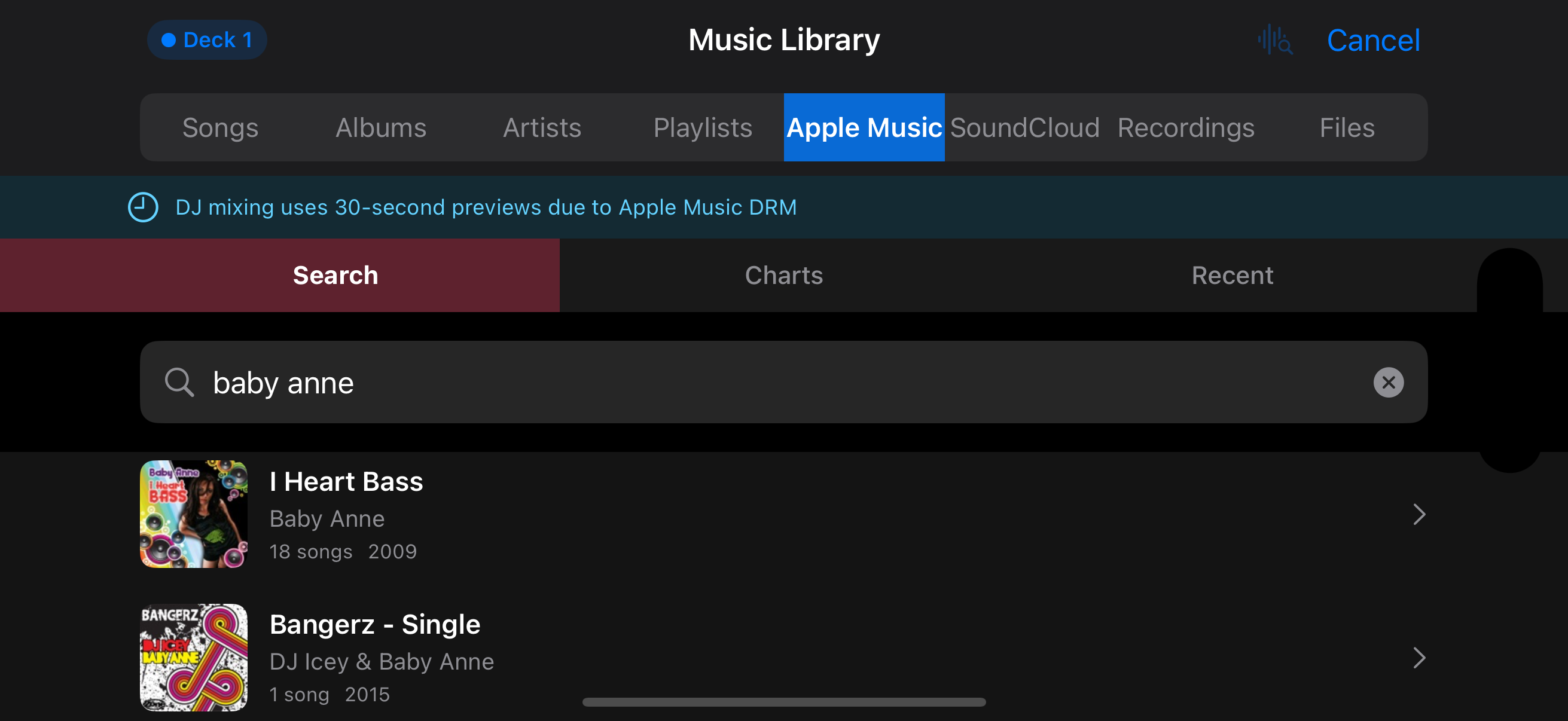
The music library with source tabs
Tap the ▶ Play button on Deck A.
Touch the turntable to scratch. Drag the waveform to scrub through the track. The crossfader at the bottom blends between decks.
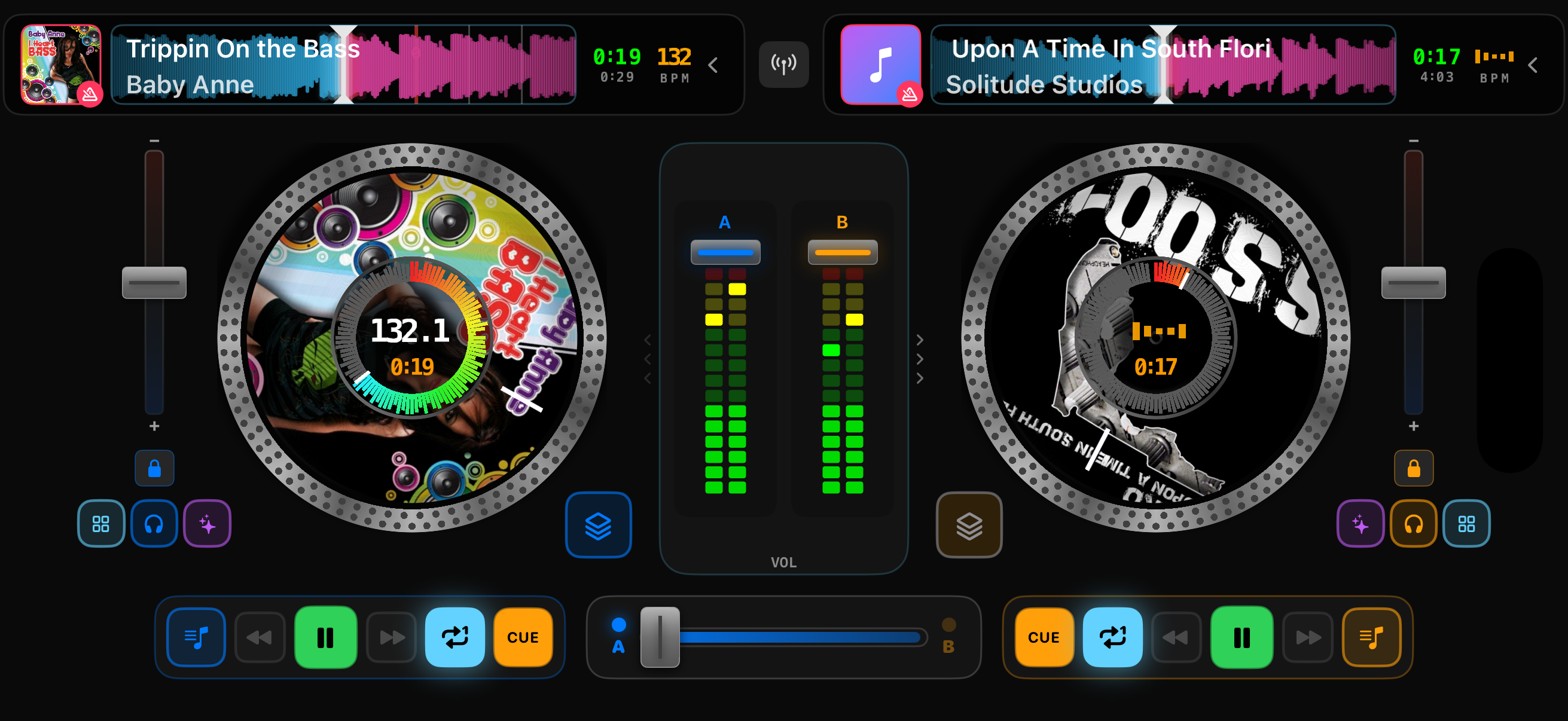
The 2-deck interface with tracks loaded
Now load a track on Deck B the same way. With two tracks loaded, you're ready to mix.