Music Sources
Tremor gives you access to music from multiple sources, all in one unified browser.
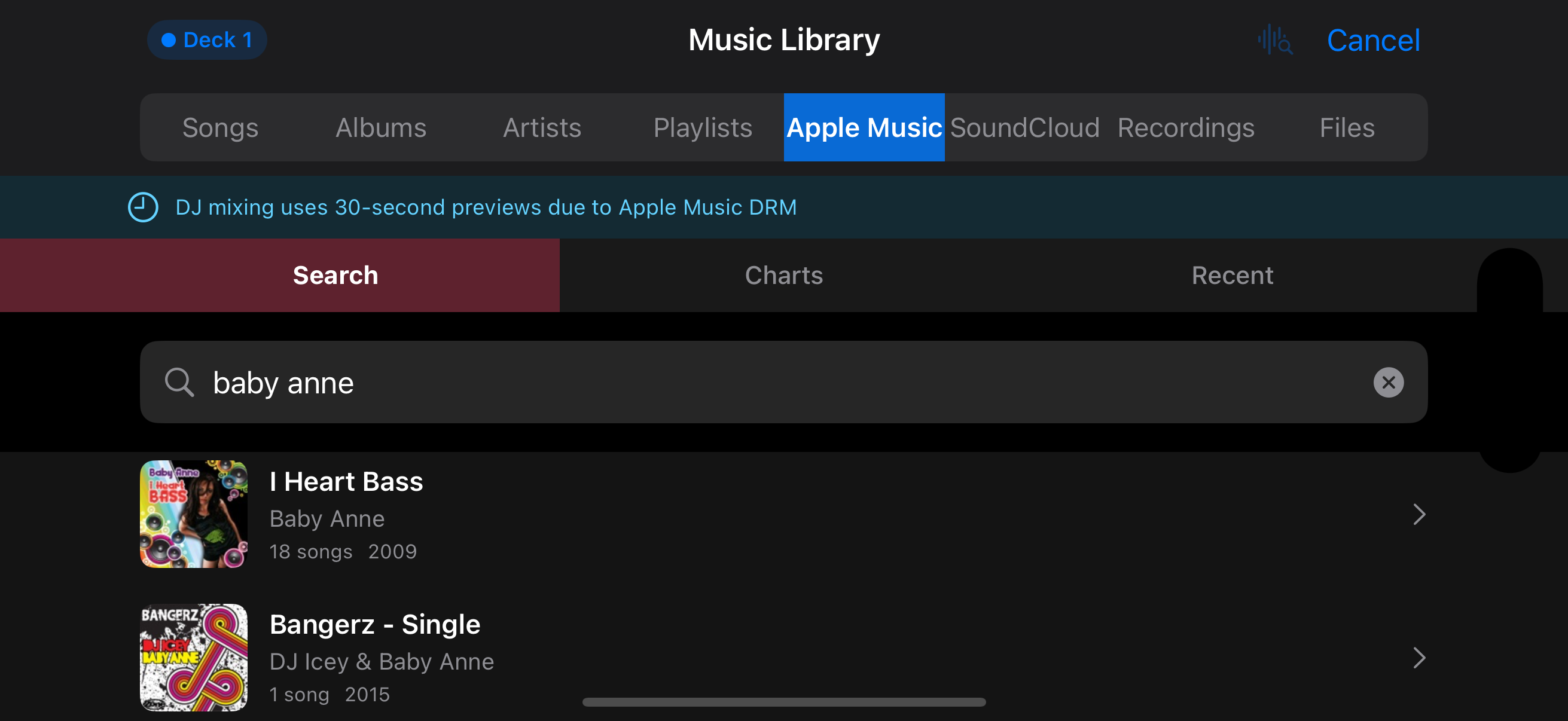
The music library with source tabs
Music Library
Your local music collection with tabs for Playlists, Artists, Albums, and Songs.
Apple Music
Stream from your subscription. Due to DRM limitations, non-downloaded tracks play 30-second previews.
External Drives
Stream directly from USB-C or Lightning drives without copying files to your device. Enable "Stream from Source" in Settings.
SoundCloud
Connect your SoundCloud account to stream tracks directly into your mix.
Recordings
Access mixes you have recorded in Tremor. Play them back, share, or remix.
Files
Import audio and video from the Files app, iCloud Drive, or external storage devices.
Apple Music DRM
Apple Music tracks that are not downloaded to your device are protected by DRM and can only be previewed (30 seconds). Download tracks for offline listening in Apple Music first to get full playback in Tremor.
Loading Tracks
There are several ways to load tracks onto your decks.
Using the Load Button
Tap the music note button on a deck's transport bar to open the library browser.
Browse by Songs, Albums, Artists, or Playlists. Use the search bar to find specific tracks.
Tap a track to load it to the selected deck. The waveform and BPM appear once analysis completes.
Quick Load
- Double-tap a track to load it to the next available deck (whichever deck is not playing)
- On iPad: Drag tracks from the embedded library directly onto a deck
Queue System
When you load an album or playlist, all tracks are automatically added to the deck's queue.
| Action | Result |
|---|---|
| Load album/playlist | All tracks queued to that deck |
| Skip buttons | Navigate through queue |
| Long-press load button | View full queue |
| Tap track in queue | Jump directly to that track |
Tip
Use the skip buttons to quickly move through your queue without opening the library. Long-press the load button to see what is coming up next.
Pre-Analyzing Tracks
Analyze your music library in advance so tracks load instantly during a performance. Pre-analyzed tracks skip the detection phase entirely.
How to Pre-Analyze
Open the music library (tap load button or use embedded library on iPad).
Tap the waveform/magnifying glass icon in the toolbar.
Choose your analysis mode:
| Mode | What It Does | Speed |
|---|---|---|
| Analyze | BPM, musical key, genre detection | ~2 seconds per track |
| Analyze with Stems | All above + AI stem separation | ~30 seconds per track |
A progress bar shows completion. Tracks that have already been analyzed are automatically skipped. Tap the X button to cancel at any time.
Before Your Gig
Pre-analyze your gig playlists the night before a performance. This ensures every track loads instantly and stems are ready for live mashups.
Music Classification
Tremor uses a neural network to automatically analyze your tracks for mood, energy, danceability, and genre. Classification runs during track analysis and results are cached permanently.
What Gets Detected
Genre
Top genres from the Discogs-400 taxonomy (House, Techno, Hip Hop, etc.)
Energy
How energetic the track is, from calm to intense (0-100%)
Danceability
How suitable the track is for dancing (0-100%)
Mood
Party, Happy, Aggressive, Relaxed, or Sad with confidence percentages
Mood Categories
Where to See Classification
- Library: Genre appears as colored pills on analyzed songs. Energy is shown as a dot indicator.
- Track Info: Tap the chart icon on a deck to see the full breakdown including all mood percentages.
Confidence Threshold
Only genres with greater than 20% confidence are displayed. This prevents inaccurate or misleading genre labels from cluttering your library.