iPhone Interface
Tremor adapts to your iPhone's orientation with purpose-built layouts for portrait and landscape DJing. Touch gestures bring vinyl-style control to your fingertips.
Portrait Mode (2 Decks)
In portrait orientation, Tremor displays a vertical dual-deck layout optimized for one-handed operation and quick track loading. Deck A sits at the top, Deck B at the bottom, with shared controls in the center.
+----------------------------------+
|         DECK A WAVEFORM          |  Scrolling waveform overview
|     (beats, position, zoom)      |
+----------------------------------+
|                                  |
|         TURNTABLE A              |  Album art on vinyl
|      [ CUE ] [ PLAY ]            |  Transport controls below
|                                  |
+----------------------------------+
|       CENTER PANEL               |  Swipe left/right for pages:
|  [Crossfader] [EQ] [FX] [Sync]   |  Mixer, EQ, Effects, Sync, etc.
+----------------------------------+
|                                  |
|         TURNTABLE B              |  Album art on vinyl
|      [ CUE ] [ PLAY ]            |  Transport controls below
|                                  |
+----------------------------------+
|         DECK B WAVEFORM          |  Scrolling waveform overview
|     (beats, position, zoom)      |
+----------------------------------+
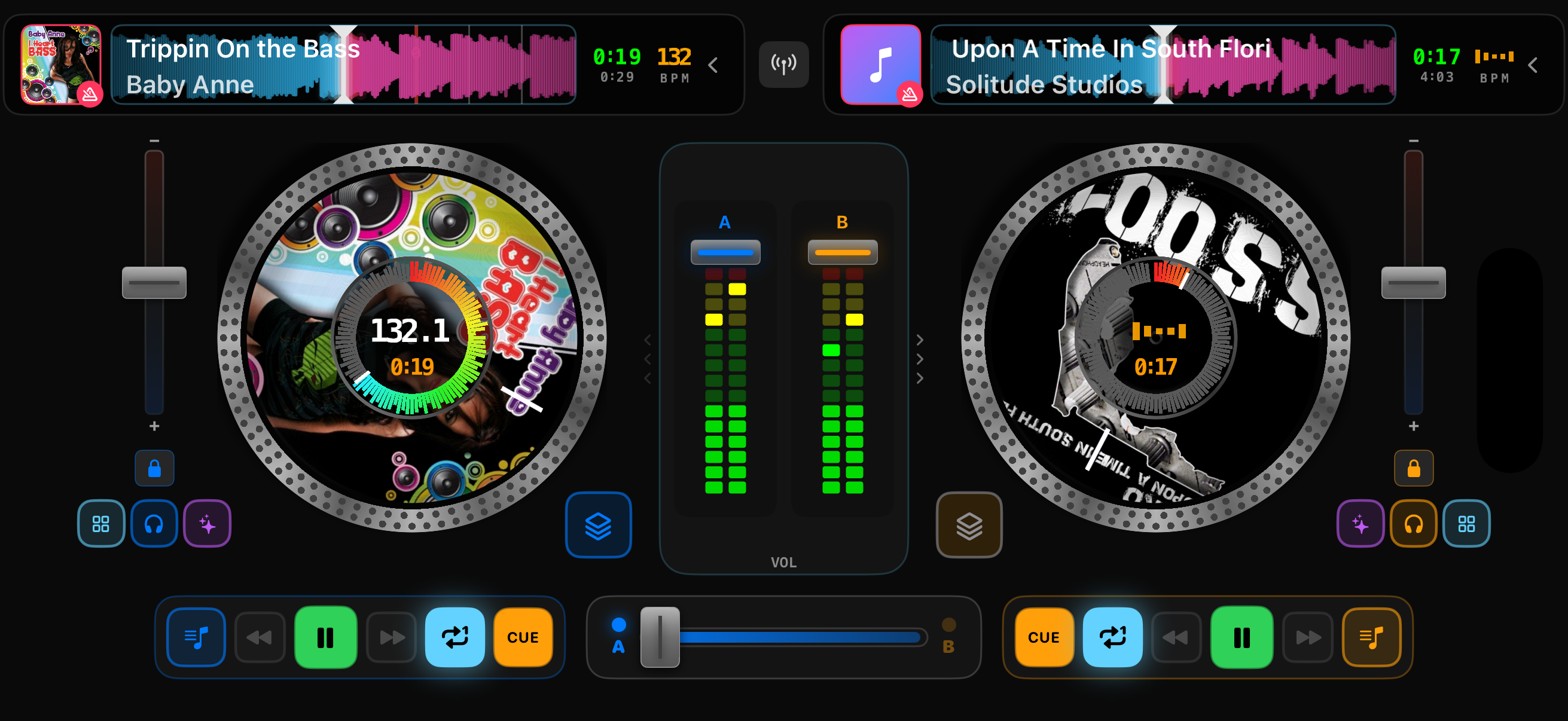
2-deck portrait mode with tracks loaded
Deck Components
Waveform Overview
Shows the full track with beat markers, playback position, and color-coded frequency bands. Drag to scrub through the track.
Turntable
Spinning vinyl platter with album artwork. Touch to scratch, spin to seek, release for motorized spinback.
Transport Bar
Play/Pause, CUE, Skip, Repeat, and Headphone Cue buttons. Tap the music note to open the library.
BPM Display
Shows detected tempo. Displays a pulsing "---" animation while analyzing. Tap to access sync controls.
Center Panel
The center panel between the decks contains shared mixing controls. Swipe left or right to access different pages:
- Mixer - Crossfader and volume faders with VU meters
- EQ - High, Mid, Low frequency knobs for each deck
- AU Effects - Delay, Reverb, Filter, and more with interactive controls
- Performance Pads - Hot cues, beat loops, pad FX, sampler
- Sync - Beat sync controls, phase display, TAP downbeat
- Video - Blended video preview when mixing video files
- Mic/Rec - Microphone input and mix recording
Landscape Mode (2 Decks)
Rotate your iPhone to landscape for a side-by-side layout with larger waveforms and turntables. This mode is ideal for longer mixing sessions and provides more visual feedback.
+----------------++--------++----------------+
| WAVEFORM A     ||        ||     WAVEFORM B |
+----------------+|        |+----------------+
|                || CENTER ||                |
|   TURNTABLE    || PANEL  ||   TURNTABLE    |
|       A        ||        ||       B        |
|                ||        ||                |
+----------------+|        |+----------------+
| [CUE] [PLAY]   |+--------+|   [CUE] [PLAY] |
+----------------+         +----------------+
Landscape Advantages
- Larger turntables - More precise scratch control with bigger touch targets
- Wider waveforms - See more of the track and beat grid at once
- Natural DJ orientation - Mirrors the layout of physical DJ controllers
- Better for performance - Easier to use both hands simultaneously
Lock Orientation
Use iOS Control Center to lock your screen orientation if you prefer to stay in portrait or landscape during your set.
Experimental 4-Deck Mode
Tremor includes an experimental 4-deck mode for iPhone in landscape orientation. This advanced layout lets you mix four tracks simultaneously using the innovative Orbital Fader.
How to Enable
Go to iOS Settings > Tremor > iPhone > 4 Decks and toggle it on. This mode is landscape-only and experimental.
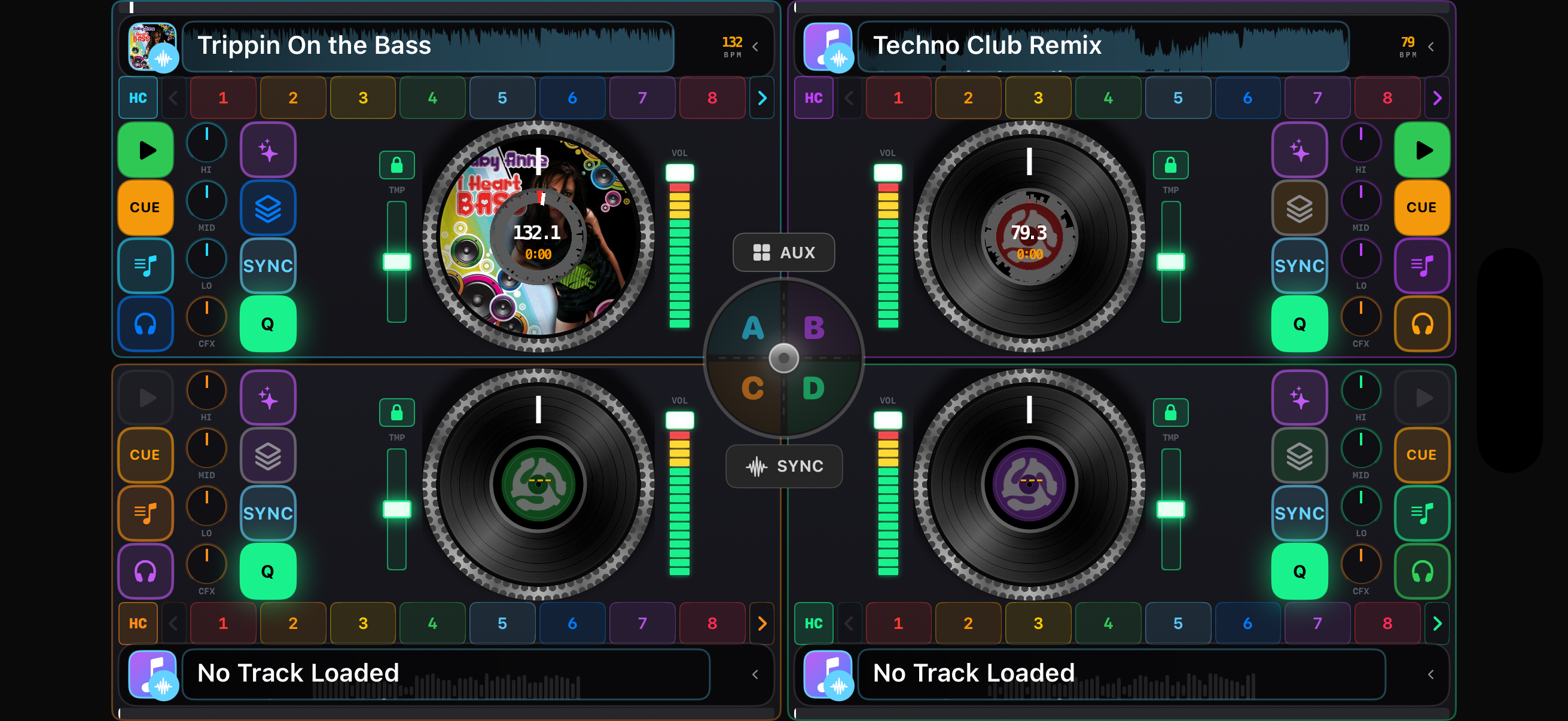
4-deck landscape mode with Orbital Fader
+----------++----------+
|  DECK A  ||  DECK B  |
| waveform || waveform |
| platter  || platter  |    +------------+
| controls || controls |    |  ORBITAL   |
+----------++----------+    |   FADER    |
+----------++----------+    |    (XY)    |
|  DECK C  ||  DECK D  |    +------------+
| waveform || waveform |
| platter  || platter  |
| controls || controls |
+----------++----------+
The Orbital Fader
The Orbital Fader is a 2D XY crossfader that blends between all four decks based on your finger position within a square. It replaces the traditional linear crossfader with spatial mixing.
Corner = Single Deck
Move to any corner for 100% of that deck. Top-left = Deck A, Top-right = Deck B, Bottom-left = Deck C, Bottom-right = Deck D.
Edge = 2-Deck Crossfade
Move along any edge to crossfade between two adjacent decks. Top edge = A/B, Left edge = A/C, etc.
Center = All Four
Position in the center to blend all four decks equally at 25% each.
Smooth Transitions
Volume levels always sum to 100%, preventing volume jumps as you move between positions.
Experimental Feature
4-deck mode on iPhone uses compact controls to fit everything on screen. For a more comfortable 4-deck experience, consider using an iPad.
Touch Gestures
Tremor's touch interface is designed to feel like real vinyl. Master these gestures to unlock the full potential of touchscreen DJing.
Turntable: Touch and Hold
Touch the vinyl platter to stop the track and engage scratch mode. The track freezes under your finger like a real record.
Turntable: Spin
While touching, rotate your finger around the platter to scratch or seek through the track. Faster spins move further through the audio.
Turntable: Release
Lift your finger to release the record. The platter spins back up to speed with realistic motor physics. Enable Audio While Seeking in Settings for CDJ-style scratch audio.
Waveform: Drag
Touch and drag the waveform display to scrub through the track. The playhead follows your finger for precise positioning.
Center Panel: Swipe
Swipe left or right on the center panel to switch between pages (Mixer, EQ, Effects, Pads, Sync, Video, Mic/Rec).
Crossfader: Double-Tap
Double-tap the crossfader to cycle through curve types: Scratch (sharp cut), Cut (quick blend), Linear (straight fade), Constant Power (smooth energy).
Load Button: Long Press
Long-press the music note (load) button to view the current queue and jump directly to any track in the album or playlist.
Transport Controls
Each deck has a transport bar with essential playback controls. These buttons work the same in both portrait and landscape modes.
| Button | Action | Notes |
|---|---|---|
PLAY / PAUSE |
Start or stop playback | After track ends, pressing Play restarts from the beginning |
CUE |
Set or return to cue point | Tap to jump to cue. Hold to preview from cue (releases when lifted). Double-tap to set cue at current position. |
SKIP BACK |
Previous track in queue | Loads the previous track from the current album or playlist |
SKIP FORWARD |
Next track in queue | Loads the next track from the current album or playlist |
REPEAT |
Cycle repeat mode | Off (no icon) → Repeat One (single track loops) → Repeat All (queue loops) |
HEADPHONE CUE |
Toggle headphone preview | Sends this deck's audio to headphones for pre-listening while the other deck plays to the main output |
LOAD (Music Note) |
Open music library | Browse Songs, Albums, Artists, Playlists, Apple Music, or Files. Long-press to view queue. |
Headphone Workflow
Enable headphone cue on Deck B while Deck A plays to the audience. Preview and beatmatch the incoming track in your headphones, then use the crossfader to bring it in.
Related Settings
Customize the iPhone interface behavior in iOS Settings > Tremor:
| Setting | Options | Description |
|---|---|---|
| Turntable Motor Speed | Standard (200/s) / Classic (180/s) | How fast the platter spins back up after release |
| Platter Feel | Snappy / Medium / Heavy | Inertia and resistance when scratching |
| Audio While Seeking | On / Off | Play audio during scratch (CDJ-style) or mute (vinyl-style) |
| iPhone 4 Decks | On / Off | Enable experimental 4-deck landscape mode |
| Tempo Range | 6% / 10% / 16% / 50% / 100% | Maximum pitch adjustment range |