What is Stem Separation?
Stem separation uses AI to split any mixed track into its individual components. Tremor uses the Neural Engine on your device to separate tracks into four distinct stems, giving you creative control over elements that were previously locked together in the final mix.
Drums
Kick drums, snares, hi-hats, cymbals, and all percussion elements. The rhythmic backbone of the track.
Bass
Sub bass, bass guitar, 808s, and low-frequency synth elements. The low-end foundation.
Vocals
Singing, rapping, spoken word, and vocal harmonies. Human voice content from the track.
Other
Synths, piano, guitar, strings, pads, and everything else. Melodic and harmonic instruments.
How It Works
Stem separation in Tremor is powered by a neural network that runs entirely on your device. No internet connection required, and your music never leaves your phone or iPad.
Processing Details
- On-device processing uses the Neural Engine on A14+ iPhones and M-series iPads for maximum speed
- First-time analysis takes 10-30 seconds depending on track length
- Results are cached so loading the same track again is instant
- Disk space required: approximately 200MB per track for the stem cache
Storage Tip
If disk space is limited, go to Settings > Tremor to clear the stems cache. Previously separated tracks will need to be re-analyzed when loaded.
Using Stems
Once a track is loaded, stem separation begins automatically in the background. Here is how to access and control the separated stems.
Load a track to any deck. Stem separation starts automatically once the track is loaded.
Swipe to the Stems page in the center panel. You will see four stem rows: Drums, Bass, Vocals, and Other.
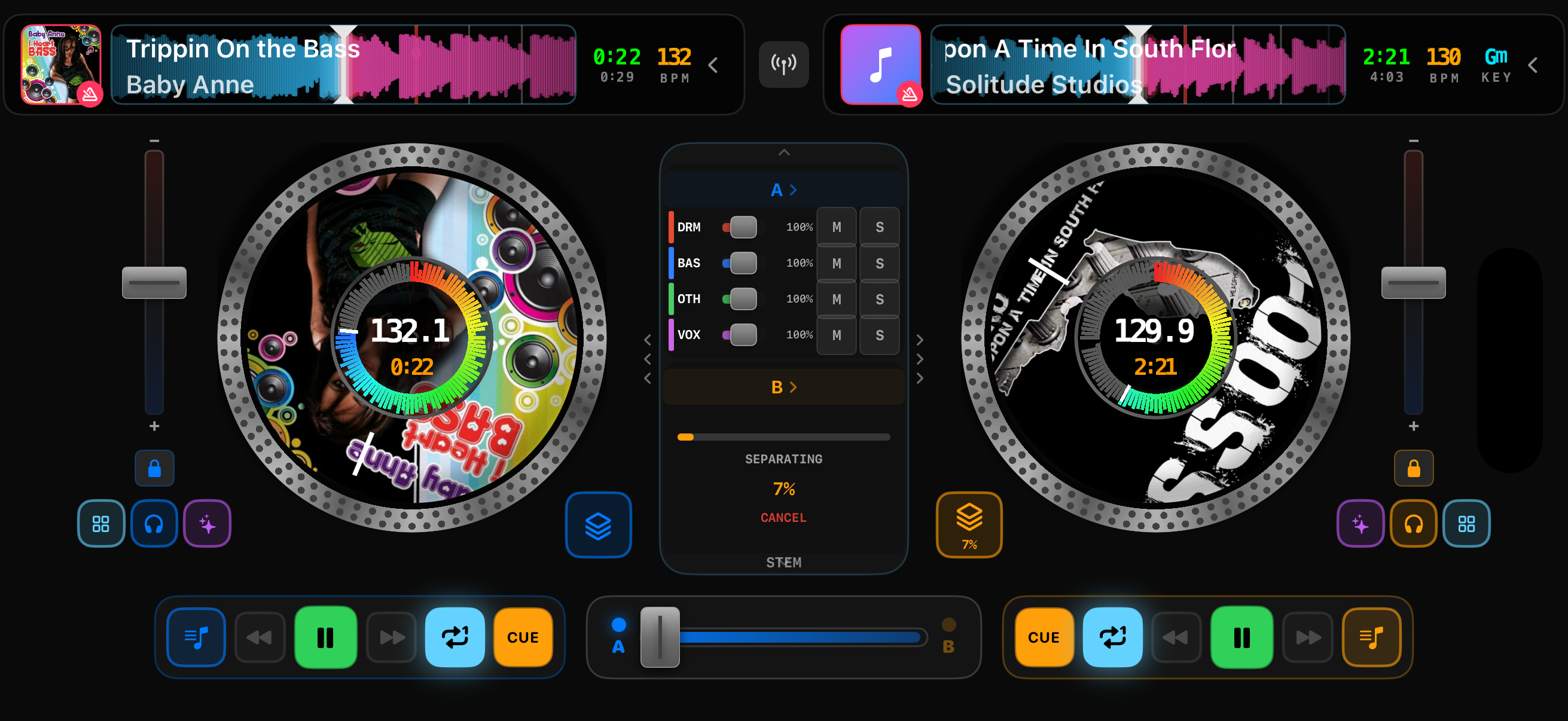
Stem faders in the center panel
Wait for processing to complete. A progress indicator shows the separation status. Once finished, all controls become active.
Control each stem independently using the buttons and faders described below.
Stem Controls
| Control | Function |
|---|---|
| M (Mute) | Silence that stem completely. Tap again to unmute. |
| S (Solo) | Play only that stem, muting all others. Tap again to unsolo. |
| Volume Fader | Adjust the level of that stem independently from 0% to 100%. |
Quick Tip
You can solo multiple stems at once. For example, solo both Drums and Bass to hear just the rhythm section without vocals or instruments.
Creative Techniques
Stems unlock creative possibilities that were previously only available to DJs with official stem files or acapellas. Here are some techniques to try.
Acapella Transitions
Mute drums and bass on the outgoing track and let the vocals float over the incoming beat. Creates an ethereal transition moment.
Instrumental Drops
Cut the vocal stem right before a drop to build tension. Bring the vocals back on the drop for maximum impact.
Live Mashups
Play the vocals from Track A over the instrumental from Track B. Match the BPMs with sync and blend two songs into one.
Stem-Specific FX
Apply reverb only to the vocals, or filter just the melody. Use stem isolation with effects for surgical sound design.
Mashup Workflow
Load Track A (the vocal source) to Deck A. Wait for stem separation to complete.
Load Track B (the instrumental source) to Deck B. Wait for stem separation.
Press SYNC on one deck to match the tempos.
On Deck A: Solo the Vocals stem. Mute Drums, Bass, and Other.
On Deck B: Mute the Vocals stem. Keep Drums, Bass, and Other playing.
Move the crossfader to center and play both decks. You now have Track A's vocals over Track B's beat.
Pre-Analyzing for Performance
Stem separation takes time. For a seamless performance, analyze your tracks ahead of time so stems are ready the moment you load a track.
Open the music library by tapping the load button on a deck or using the embedded library on iPad.
Tap the waveform magnifying glass icon at the top of the library to open the analysis menu.
Choose "Analyze with Stems" to run full analysis including stem separation. This takes approximately 30 seconds per track.
Pre-analyze your gig playlists the night before a performance. Every track will load instantly with stems already separated.
Pro Tip
Already-analyzed tracks are automatically skipped. You can safely run "Analyze with Stems" on an entire playlist without re-processing tracks that were previously analyzed.
Realtime Stems (Advanced)
For situations where you need stems immediately without waiting for full track analysis, enable Realtime Stems mode.
How It Works
- Toggle in Settings: Go to Settings > Tremor and enable "Realtime Stems"
- Priority processing: Segments nearest to the playback cursor are processed first
- Partial stems in ~1.5 seconds: Start using stems almost immediately after loading
- Full stems refine: The rest of the track processes in the background as it plays
When to Use
Realtime Stems is ideal for spontaneous track selection during a live set. For planned performances, pre-analyzing is still recommended for the best quality and instant full-track access.