Neural Beat Tracking
Tremor uses AI-powered neural beat tracking to detect the BPM and beat positions of every track. Unlike traditional algorithms that rely on simple peak detection, Tremor's neural network analyzes the entire track to deliver accurate results across all music genres.
Full Track Analysis
The neural network processes the complete audio file, not just a sample. This catches tempo changes and ensures accuracy.
Genre Agnostic
Works on any music genre: electronic, hip-hop, rock, classical, jazz, reggae, afrobeat, and more.
Automatic Analysis
BPM detection runs automatically when you load a track. No manual steps required.
Cached Results
Once analyzed, results are saved. Loading the same track again is instant.
BPM Display
The detected BPM appears in the deck header once analysis completes. While analyzing, you will see a pulsing "---" animation. This typically takes 2-3 seconds for most tracks.
Sync Requires BPM
You can play a track immediately after loading (when the Play button flashes green), but SYNC and other beat-dependent features won't work until BPM detection completes. Wait for the BPM number to appear before using sync.
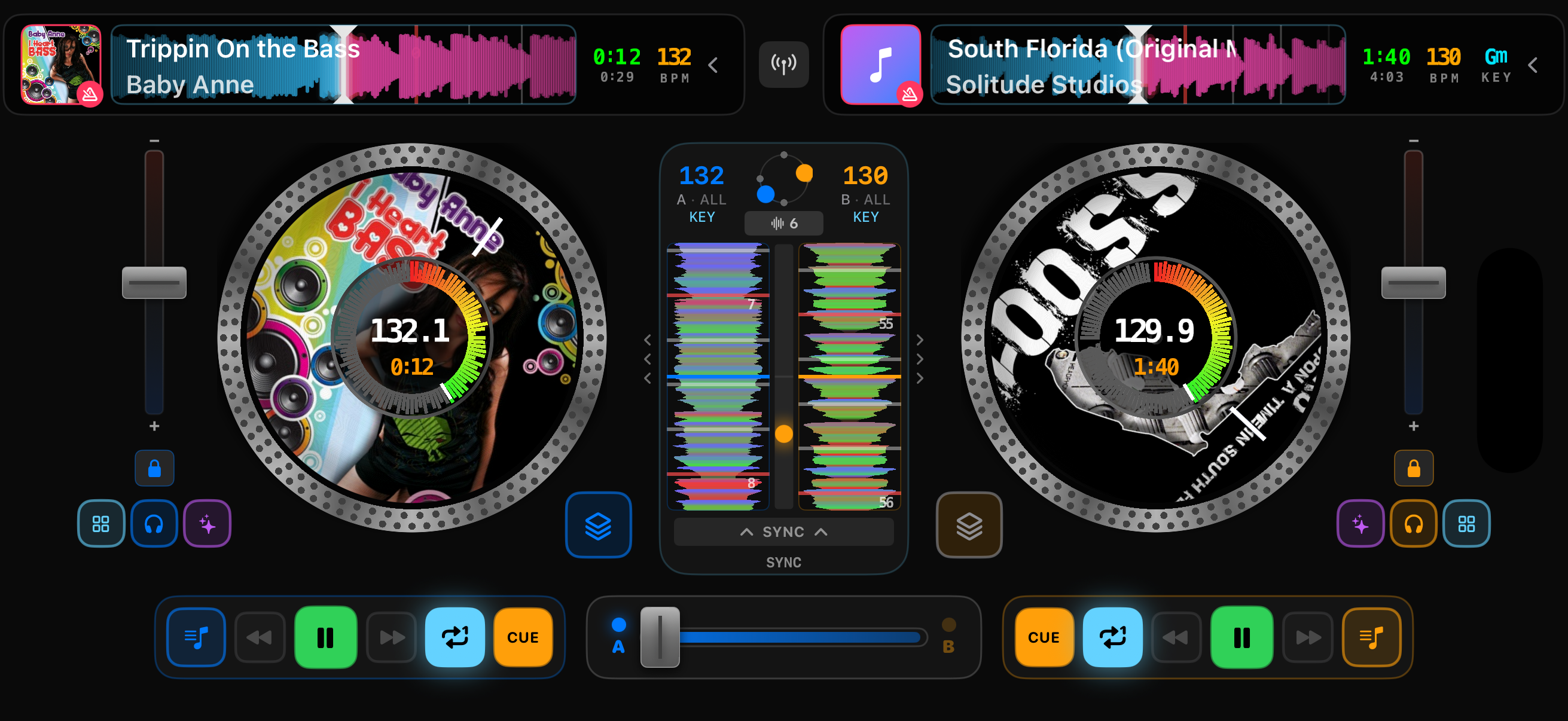
Waveform with beat grid markers visible
Pre-Analyze Your Library
For the fastest experience during a live set, pre-analyze your music library before performing. Open the library, tap the waveform icon, and select Analyze. All tracks will be ready with BPM, key, and genre data.
The Sync Page
The Sync page is your command center for beat alignment. Access it by swiping through the center panel pages.
Components
| Component | Description |
|---|---|
| Dual Beat Waveforms | Vertical scrolling waveforms showing beat positions. Harmonically colored to visualize frequency content. Beat markers appear as horizontal lines, with downbeats (beat 1) shown thicker. |
| Phase Indicator Bar | The vertical bar between waveforms shows alignment status. Green means beats are aligned (less than 5% phase difference). Orange means beats are misaligned. |
| BPM Display | Shows the detected BPM for each deck at the top of the page. |
| SYNC Buttons | Sync that deck's tempo and phase to the other deck. |
| TAP Buttons | Manually set the downbeat (beat 1) at the current playback position. |
How to Sync
Syncing aligns the tempo and phase of one deck to match the other. The synced deck becomes a "follower" that continuously adjusts to stay locked.
Load tracks on both decks. Wait for BPM detection to complete on each. You will see the BPM values appear in the deck headers.
Start playback on both decks. The tracks will play at their original tempos, likely out of sync.
Press SYNC on the deck you want to adjust. If you press SYNC on Deck B, it will match Deck A's tempo and phase. Deck A remains the leader.
The synced deck adjusts automatically. Its tempo changes to match the leader, and playback shifts to align the beats.
Watch the phase indicator turn green. This confirms the beats are aligned. If it stays orange, the downbeat may be off by a bar (see TAP Downbeat below).
Leader and Follower
The deck you press SYNC on becomes the follower. It continuously tracks the other deck (the leader). If you adjust the leader's tempo, the follower automatically matches.
TAP Downbeat
Neural beat tracking finds the beat positions, but it may not always correctly identify which beat is beat 1 (the downbeat). This affects phrase alignment: two tracks can be beat-matched but sound "off" because their musical bars do not line up.
The Problem
Music is organized in bars (measures), typically 4 beats per bar. Beat 1 is usually the most emphasized, often where the kick drum hits hardest. If Tremor detects beats accurately but places beat 1 on the wrong beat, your tracks will be out of phrase even though they are tempo-locked.
The Solution
Use the TAP button to manually set beat 1 at the correct position.
Listen for the first beat of a musical bar. This is usually the emphasized kick drum or bass hit at the start of a 4-beat pattern.
Tap the TAP button exactly on that beat. Timing matters: tap right when you hear the downbeat.
The beat grid shifts. That position becomes beat 1. All subsequent beat markers and phrase boundaries adjust accordingly.
When to TAP
If two synced tracks sound "off" even though the beats are aligned, the downbeat is likely wrong on one deck. Listen for the drop or chorus: both should hit at the same moment. If not, TAP on the deck that feels shifted.
BPM Doubling and Halving
Sometimes the neural beat tracker detects a BPM that is half or double the actual tempo. This is common with certain genres:
- Drum and bass at 87 BPM when it should be 174 BPM
- Hip-hop at 140 BPM when it should be 70 BPM
- Reggae at 160 BPM when it should be 80 BPM
How to Fix
Tap the BPM value in the deck header. A popup appears with adjustment options:
| Button | Action |
|---|---|
| x2 | Double the detected BPM. Use when the displayed BPM is half the actual tempo. |
| /2 | Halve the detected BPM. Use when the displayed BPM is double the actual tempo. |
Octave Matching
When syncing tracks with very different BPMs (e.g., 70 BPM and 140 BPM), Tremor automatically handles octave matching. It recognizes that 70 and 140 are musically compatible tempos and syncs them correctly.
Key Lock
Key Lock (also called Master Tempo) lets you change a track's tempo without changing its pitch. This is essential when mixing tracks with different BPMs: without Key Lock, speeding up a track raises its pitch, which can sound unnatural.
How It Works
Key Lock uses real-time time-stretching to separate tempo from pitch. When enabled, you can speed up or slow down a track by 10% or more while it stays in its original key.
When to Use
- Mixing across genres with different typical BPMs (e.g., house at 128 BPM with hip-hop at 95 BPM)
- Harmonic mixing where you want tracks to stay in key while tempo-matched
- Any time tempo changes exceed +/- 4% where pitch shift becomes noticeable
Toggle Key Lock
Key Lock is available in the deck controls. When enabled, an indicator appears on the deck showing that pitch correction is active.
Audio Quality
Time-stretching works best within a +/- 10% tempo range. Beyond that, audio artifacts may become audible. For extreme tempo changes, consider finding tracks with closer native BPMs.